Subscribe For Free Updates!

We'll not spam mate! We promise.

Monday, 27 January 2014

How to Protect Yourself from Keyloggers in Windows Oprating Systems


How to Protect Yourself from Key loggers in Windows operating systems


Keylogging is a shortened form of “keystroke logging.” Keystroke refers to recording the keys pressed on the keyboard of a computer. Although not always, this technique is usually used for malicious purposes. The software used for the recording of keystrokes are called keyloggers.
Since it is mostly used for malicious purposes, this calls for you to finds ways to protect yourself from keyloggers and their intent to destroy your computing experience.

Types of Keyloggers


There are different types of keyloggers based on how they perform the recording of keyboard key presses. Let’s look into the types of keyloggers before moving further.
  • Hypervisor-based keyloggers
  • Kernel-based keyloggers
  • API-based keyloggers
  • Memory-injection keyloggers
  • Form-grabbing keyloggers
Form-grabbing keyloggers are the most common ones because of their web-based nature. These keyloggers will grab the data which is input into a web form on any browser and will even work in a secure HTTPS-based connection. The browser does not know about the data theft, as the data is first copied by the keylogger and then passed over to the web browser.
Since Windows 8 includes a very basic antivirus, Windows Defender, most users don’t feel a need for a stronger security suite that may slow down their computers. For those that do, however, the following are three choices to help protect yourself from keyloggers. You can also download Windows 8.1 Preview which will offer better security and features to the users. You can upgrade to the latest Windows Update when a stable version becomes available through Windows Update.

KeyScrambler


KeyScrambler is a wonderful free anti-keylogging software that can be used for protecting against web-based keyloggers. While you can have a complete Internet security suite for keeping yourself safe from most of the Internet threats, it does come with a cost. Most of the Internet security suites are not free and are prone to taking huge system resources while operating.
KeyScrambler resource usage is almost negligible. I have been using KeyScrambler for a few days and have yet to fall into any performance problems. There are two executables running in the Process Manager. Both of them take about three to four MB of memory with almost no processor usage.
clip_image001

Setting up KeyScrambler for protection


KeyScrambler can be downloaded from here. The installation procedure is quite simple and follows the standard app installation procedure on Windows.
I like the way KeyScrambler handles the screen space. While the keyboard is being used on a web browser, it will show an overlay window on the top center of the screen, and when you finish writing, the window disappears saving space and time. The overlay window displays the encrypted version of text being typed by the keyboard. If a keylogger is active, it will get the encrypted form of keyboard key presses.
If the overlay window is being shown, it is the confirmation that KeyScrambler is working and encrypting the keyboard presses.
Right clicking on the system tray icon will allow you to enable or disable the KeyScrambler functionality. You can also use the default hotkey for this purpose which is Ctrl + Shift + K. The hotkey can be customized in Options under the General tab.
clip_image003
You can also change the overlay window in Options under the Display tab.
clip_image004
In the advanced Tab of Options, you can select whether to encrypt the Space key or not and supporting East Asian language input.
clip_image005
KeyScrambler encrypts the key strokes on a driver level, it becomes almost impossible for keyloggers to bypass KeyScrambler. The overlay window will show you the encrypted text while you are typing. The keyloggers will get the encrypted text which will be unreadable for anyone.
I have been using KeyScrambler for some days and have been completely satisfied with it. It is unobstrusive and works seamlessly with all browsers. The only issue I had was using KeyScrambler along with KeePass, a password manager. If you are using auto typing feature of KeePass, the text typed into the text boxes will be encrypted by KeyScrambler, so you will need to manually copy the text fields from KeePass and paste them into the browser.
Tuesday, 14 January 2014

Lock A Windows PC Without Locking The Screen


Lock A Windows PC Without Locking The Screen


If you are watching a movie or having a video chat with your family or friends in a group and don’t want anyone to disturb the screen through keyboard or mouse, KeyFreeze is the right app for you.
KeyFreeze locks the keyboard and mouse without locking the computer screen. Normally when we lock a PC, the screen changes to a locked one where we have to enter the password again in order to use the PC again. KeyFreeze gets rid of this situation and freezes the mouse and keyboard while leaving the screen open to make sure that no one can alter anything without your own intent.

Installing and using KeyFreeze

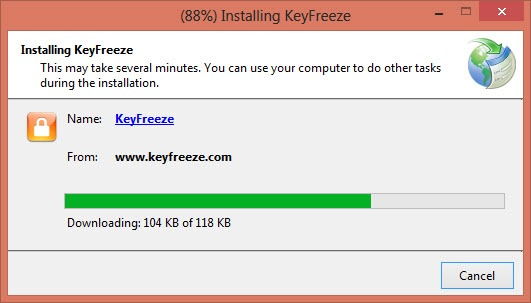
KeyFreeze is such a small utility that it should not have an installer but the publisher has packed KeyFreeze in an installer. The setup comes in an online installer which will download and install the actual program upon execution.
Installing KeyFreeze
The interface of KeyFreeze is very simple as it comes only with one button, “Lock Keyboard & Mouse“. You can click on the button to lock the keyboard and mouse while keeping the screen open. When you press the Lock keyboard and mouse button, it will lock the screen after 5 seconds.
One thing to note here is that if you are running KeyFreeze as administrator, it will not ask you about running the app otherwise it will ask for admin permissions.
KeyFreeze
To unlock the keyboard and mouse, just press Ctrl + Alt + Del. This will release the keyboard and mouse immediately. You can press the Back button to proceed if you are using Windows 8.

Backup Gmail And Yahoo Emails On Your Computer..!


Backup Gmail And Yahoo Emails On Your Computer


Gmail is a popular email service providing email services to millions of users around the world. Gmail has a lot of features but there is no direct way to download and backup email from Gmail on our local computers. Gmail, however, offers POP3 and IMAP functionality which lets us download the email locally using any email client like Microsoft Outlook or Mozilla Thunderbird.

MailStore Home can backup your email

MailStore Home is a free portable app that enables you to archive all the emails from multiple email accounts in a centralized archive. MailStore Home is free for personal use and can be installed in Windows or used as a portable app. If you are running it as a portable app, it will be able to backup your email accounts on a USB flash drive making it possible for your to take your backup anywhere with you.

Features

  1. MailStore Home provides a text searching function by which you can search your backed up and archived emails in seconds.
  2. It provides a central email backup and management system unlike POP3 which only downloads email from your inbox.
  3. It supports several sources including Gmail, Yahoo Mail, Microsoft Outlook, Outlook Express, Exchange Server mailboxes, Office 365, Mozilla Thunderbird etc.
  4. Can even backup large amounts of email very conveniently without data loss or corruption.
  5. All archived emails can be restored. This feature is essentially great for migrating emails  from one account to another.
  6. It can be installed on a PC as well as on a USB flash drive as a portable app.

Installation and usage

When you start MailStore Home setup for installation, it will ask you whether to install it on the computer or as a portable app on any USB drive, hard drive or a specific folder. And that’s it. This is the only configuration you will need for installation.
MailStore Home installation options
To start backing up your email, you will need to click on Archive Email button. You will need to create a new profile by entering your email address.


To backup your gmail account, just click on the Advanced button and select Google
Mail. Please note that you will need to enable POP3/IMAP in your Gmail settings in order for MailStore Home to backup the emails. On the next screen you will get some configuration options related to backing up emails from your Gmail account.
Clicking on the Finish button will automatically create a new profile for you. You can select the profile and run it to backup your email according to the settings you have configured before.

Wednesday, 8 January 2014

Unlimited Cloud Storage Space


Tired Using Limitd & Many More Cloud Storage Services....?? Here Is Solution... Unlimited Storage Space


Online cloud storage and synchronization has become a necessity and up until now, Dropbox is the easiest, the best and the most popular online storage service with instant synchronization option. With the boom in online storage and cloud computing, lot of companies are offering cloud storage solutions including Google which is offering Google Drive or Microsoft which is offering SkyDrive. Other companies include Bitdefender which is offering Safebox. All these companies offer a small amount of storage for free and if you need more storage, you’ll need to go for a paid package of the cloud storage solution. In the previous year, I have already reviewed 3 free online storage solutions which includes Dropbox, Windows Live Mesh (Now SkyDrive) and SpiderOak.
Today I want to talk about a free alternative to Dropbox or any other similar service with a distinction that it offers unlimited storage option. It is not limited to a few GBs of storage but now you can synchronize and backup Terabytes of your important data including audio and video.
BitcasaYes, I’m talking about Bitcasa, a new cloud storage service which offers unlimited storage for free. You will only need to register for an account on Bitcasa and follow the steps below in order to start using Bitcasa unlimited storage.
  1. Download Bitcasa client for Windows, Linux or Mac and install it on your computer. The installation process is straight forward and does not require any configuration.
  2. Signup for an account of Bitcasa. You can also signup with your Facebook or Twitter account.
  3. When you start Bitcasa client for the first time, you’ll need to login to your account that you had registered in step two.
  4. Bitcasa sits in your system tray. You can right click the icon and select “Show Bitcasa” in order to open the client.
  5. In the left hand pane, select Add and then select the folder you want to backup in the cloud.
  6. After selecting the folder, you will get three options: Infinite Storage, Sync and Backup
    Bitcasa infinite storage
    Infinite storage: The folder will appear in the computer as normal folder but it will be streamed from Bitcasa cloud storage. The folder will remain virtually unlimited in size.
    Sync: The folder will be synchronized between different devices and the data will also remain safe on Bitcasa servers.
    Backup: The folder will be backed up regularly on Bitcasa cloud storage. The folder will also stay in the local computer as well as on the cloud storage.
  7. This is all. Bitcasa client will work to automatically synchronize all the selected folders according to your choice. You don’t need to do anything else.
Tip: You can also right click any folder and select the Bitcasa options in order to synchronize the folder immediately. This will save you from step 6.
I have been using Bitcasa storage for a while now and haven’t came across any issues yet. The best thing about this service is that it is offering unlimited storage absolutely free of cost. Which cloud storage services are you using right now? Will Bitcasa replace your current service? Please share your thoughts in comments below.

Wednesday, 13 November 2013

Setup A New Account - Microsoft Outlook 2007

Setup A New Account - Microsoft Outlook 2007


Open Microsoft Outlook 2007.

At the top of the page click on the 'Tools' menu and then select 'Account Settings...'.
Tools > Account Settings...


Auto Account Setup
Check the box at the bottom for 'Manually configure server settings or additional server types'.
Note: at this point, depending on whether the user has setup a previous account in Outlook, the next couple screens may very in order but they are nearly identical, just confirm with the user which menu they are viewing.


The key point is that they check the box to 'Manually configure server settings or additional server types' and select the type of email service for the account (POP/IMAP). They will see either the 'Choose Email Service' (POP, IMAP, HTTP) or the user's settings window with 'Manually configure server settings or additional server types'.


Choose E-mail Service
Choose the E-mail Service: Put a dot in 'Internet Email' (or in 'Microsoft Exchange, POP3, IMAP, or HTTP' depending on the screen user is viewing).

Make sure that your settings look like the settings shown in this screenshot.
The following are the most important:

  • Your Name: Your Name (eg. John Smith)
  • E-mail Address: email@domain.tld (eg. john@test.com
  • Incoming mail server (POP3): mail.domain.tld (eg. mail.test.com)
  • Outgoing mail server (SMTP): mail.domain.tld (eg. mail.test.com)
  • User Name: email.domain.tld (eg. john.test.com NOT john@test.com)
  • Password: The one you specified in your EasyMail Setup (8 characters maximum).
  • Once your settings look like the settings shown in this screenshot, click on the 'More Settings...' button in the bottom right hand corner.


Internet E-mail Settings
Click the 'Outgoing Server' tab at the top of the screen.


Outgoing Server
Put a checkmark in 'My outgoing server (SMTP) requires authentication' and make sure that the dot is in 'Use same settings as my incoming mail server'.


Advanced
Click on the 'Advanced' tab at the top.

Make sure that your settings look like the settings shown in this screenshot.


Click the 'OK', 'Next' and then 'Finish' buttons and now you should be able to send and receive email. 


Tuesday, 6 August 2013

Xcode 5 Developer Preview 4 + Tools Mac OS X


Xcode 5 Developer Preview 4 + Tools Mac OS X


http://i50.fastpic.ru/big/2013/0803/d1/ac24614c1b357548b2997d822bb0fbd1.jpg
Xcode 5 Developer Preview 4 + Tools Mac OS X | 1.83 GB
Xcode is the complete toolset for building Mac apps and iOS apps and with Xcode 5, the tools do more than ever to help you create fast, efficient, high-quality apps. Xcode automatically configures your apps to use the latest Apple services, manages your many images in a unified asset catalog, and helps you design an app that looks gorgeous on iOS 7 or OS X Mavericks. Xcode 5 makes it incredibly easy to create and run tests, analyze your code, and monitor performance. And with access to continuous integration baked right in, your team can create better apps than ever before.

Automatic Configuration

Xcode 5 automatically configures your app to enable Apple services such as iCloud, Passbook, or Game Center, directly within the IDE. The new capabilities editor makes it as easy as flipping a switch to enable Apple services. Simply enter your Apple ID, and Xcode will manage your teams, certificates, and entitlements for you. Xcode will add the proper frameworks, create the appropriate provisioning profiles and entitlements, and sign your app automatically when you click Run.

Test Navigator
Creating a quality app requires that you write comprehensive tests. Test-driven development is easier than ever with the new Test Navigator in Xcode 5 which helps you create, edit, and run your unit tests. A single click can run individual tests, or a selected group. The Assistant editor provides new test-specific categories that automatically place your tests and application code side by side.

Bots for Continuous Integration
Xcode 5 works closely with OS X Server for OS X Mavericks to easily create bots that continuously build your app, execute your complete test suite, and run the Xcode static analyzer to find potential bugs. You can create a new bot in only a few clicks, and immediately start it running on any Mac in your network. While the remote Mac is doing all the integration work, Xcode on your local machine displays the build and test reports.

A nightly bot is great for generating a regular release for your QA team. Bots can also be configured to execute on every check-in, alerting committers immediately when something is broken. Bots can even test your iOS app on connected iPhones and iPads, surfacing any device-specific bugs.

Auto Layout
Auto Layout is a powerful technology that allows you to create a single user interface which automatically adjusts to screen size, orientation, and localization. With Xcode 5, Interface Builders support for Auto Layout has been greatly enhanced. Interface Builder offers as much or as little help as you like, giving you a free-form canvas on which to create your next great app. Xcode offers helpful alerts when constraints are missing or mis-configured, and Interface Builder can even fix the layout for you.

Asset Management
A beautiful app is composed of many images: icons for iPad, iPhone, and Mac, launch screens for different screen sizes, and all your custom artwork. Asset Catalogs, labeled as .xcassets in Xcode 5, make managing your images much simpler. You can work with all versions of each image without managing individual files, or memorizing filename conventions. The Asset Catalog can even create image splits that enable your images to scale dynamically with the interfaces layout, while keeping the file size small.

Debug Gauges
New debug gauges in Xcode 5 show resource consumption data at a glance, including CPU, memory, energy use, iCloud, and OpenGL ES. The gauges themselves add very little overhead while your app runs, making it obvious when CPU or memory usage spikes, and alerting you to an otherwise hidden problem long before your users see it. Clicking a gauge reveals a full report, complete with a preliminary diagnosis of what may be plaguing your app. You can then click a single button to launch Instruments, which will immediately begin performing a deeper analysis of your apps performance.

Xcode Visual Debugger
Built on the powerful LLDB debugging engine, the Xcode visual debugger in Xcode 5 is cleaner and more readable, and the Data Tips that hover over your code are more responsive. Variables in either view are formatted to be easier to understand at a glance, and you can now use Quick Look to quickly peek at an image, web page, bezier curve, or a document in memory. You can even print the object within the editor using a single click.

Source Control
The new top-level Source Control menu always shows the currently active branch of the project you are working on, and gives you quick access to switch, create, and merge branches. Youll never need to leave your code to create a new feature branch, or fix a bug. If you dont remember writing the code in front of you, you can check who to blame for that line, right in the editor. The new Accounts preference in Xcode gives you a single place to manage all your repositories, and OS X Server for OS X Mavericks can even host Git repositories for you and your team.

Supported Configurations:
Xcode 5 developer preview requires OS X 10.8 or above.
It does not run on earlier versions of Mac OS X.
Xcode supports development for iOS 7, OS X 10.9, and OS X 10.8.
Instruments requires OS X 10.8.4.

DOWNLOAD
(Premium Recommended)

Uploaded:
http://uploaded.net/file/wku67kau/2hpc3.Xcode.5.Developer.Preview.4..Tools.Mac.OS.X.part1.rar
http://uploaded.net/file/0cl1vj7z/2hpc3.Xcode.5.Developer.Preview.4..Tools.Mac.OS.X.part2.rar
http://uploaded.net/file/1bsktp7b/2hpc3.Xcode.5.Developer.Preview.4..Tools.Mac.OS.X.part3.rar
http://uploaded.net/file/dp2ef5pd/2hpc3.Xcode.5.Developer.Preview.4..Tools.Mac.OS.X.part4.rar
http://uploaded.net/file/c67ih6ii/2hpc3.Xcode.5.Developer.Preview.4..Tools.Mac.OS.X.part5.rar
http://uploaded.net/file/mrv1rxfs/2hpc3.Xcode.5.Developer.Preview.4..Tools.Mac.OS.X.part6.rar

BitShare:
http://bitshare.com/files/1ktnp3ah/2hpc3.Xcode.5.Developer.Preview.4..Tools.Mac.OS.X.part1.rar.html
http://bitshare.com/files/dek9mb4y/2hpc3.Xcode.5.Developer.Preview.4..Tools.Mac.OS.X.part2.rar.html
http://bitshare.com/files/2qmaakb8/2hpc3.Xcode.5.Developer.Preview.4..Tools.Mac.OS.X.part3.rar.html
http://bitshare.com/files/h1t5opdz/2hpc3.Xcode.5.Developer.Preview.4..Tools.Mac.OS.X.part4.rar.html
http://bitshare.com/files/63r8l2l5/2hpc3.Xcode.5.Developer.Preview.4..Tools.Mac.OS.X.part5.rar.html
http://bitshare.com/files/flslju3q/2hpc3.Xcode.5.Developer.Preview.4..Tools.Mac.OS.X.part6.rar.html

RapidGator:
http://rapidgator.net/file/e1d37f7f685f7073d749bccf3f6f7f16/2hpc3.Xcode.5.Developer.Preview.4..Tools.Mac.OS.X.part1.rar.html
http://rapidgator.net/file/82ddd2480475d625da282383b892b08d/2hpc3.Xcode.5.Developer.Preview.4..Tools.Mac.OS.X.part2.rar.html
http://rapidgator.net/file/87daa776a46aad9a2f2ccb7f433da60b/2hpc3.Xcode.5.Developer.Preview.4..Tools.Mac.OS.X.part3.rar.html
http://rapidgator.net/file/dc8e766c0834fa7753f7339c316bd747/2hpc3.Xcode.5.Developer.Preview.4..Tools.Mac.OS.X.part4.rar.html
http://rapidgator.net/file/5b235d58f49539ff9ab7b81b66bd7cb6/2hpc3.Xcode.5.Developer.Preview.4..Tools.Mac.OS.X.part5.rar.html
http://rapidgator.net/file/59726589dcdbce0ba5812d853708dc60/2hpc3.Xcode.5.Developer.Preview.4..Tools.Mac.OS.X.part6.rar.html

Extabit:
http://extabit.com/file/279my106yj6vv/2hpc3.Xcode.5.Developer.Preview.4..Tools.Mac.OS.X.part1.rar
http://extabit.com/file/279my106yj6wb/2hpc3.Xcode.5.Developer.Preview.4..Tools.Mac.OS.X.part2.rar
http://extabit.com/file/279my106yj6wr/2hpc3.Xcode.5.Developer.Preview.4..Tools.Mac.OS.X.part3.rar
http://extabit.com/file/279my106yj9zv/2hpc3.Xcode.5.Developer.Preview.4..Tools.Mac.OS.X.part4.rar
http://extabit.com/file/279my106yj9zf/2hpc3.Xcode.5.Developer.Preview.4..Tools.Mac.OS.X.part5.rar
http://extabit.com/file/279my106yj6uz/2hpc3.Xcode.5.Developer.Preview.4..Tools.Mac.OS.X.part6.rar

RyuShare:
http://ryushare.com/rryh3a3txprz/2hpc3.Xcode.5.Developer.Preview.4..Tools.Mac.OS.X.part1.rar
http://ryushare.com/mfc7tejj3kjx/2hpc3.Xcode.5.Developer.Preview.4..Tools.Mac.OS.X.part2.rar
http://ryushare.com/7ojfodrgcp40/2hpc3.Xcode.5.Developer.Preview.4..Tools.Mac.OS.X.part3.rar
http://ryushare.com/6jz193vvc6a1/2hpc3.Xcode.5.Developer.Preview.4..Tools.Mac.OS.X.part4.rar
http://ryushare.com/ycvtqpc3oztb/2hpc3.Xcode.5.Developer.Preview.4..Tools.Mac.OS.X.part5.rar
http://ryushare.com/qm1dkrfxl0h1/2hpc3.Xcode.5.Developer.Preview.4..Tools.Mac.OS.X.part6.rar

Monday, 5 August 2013

Universal Maps Downloader v6.885


Universal Maps Downloader v6.885

 
http://i46.fastpic.ru/big/2013/0728/c0/a3cc4b3c3ef8b289ae70bc77a11bcec0.jpg

Universal Maps Downloader v6.885 | 3 Mb

Universal Maps Downloader is a tool that help you to get small tile images from Google Maps, Yahoo maps, MicroSoft Virtual Earth maps, OpenStreet Maps. All downloaded small images are saved on the disk. You can view downloaded maps by Maps Viewer Or you can combine them into a big BMP map by Maps Combiner.


Uploaded:

BitShare:

RapidGator: